
Appearance
3. The agreement and the client's acceptance
Back to the case study · Previous: 2. Planning the project
Most disputes on interior projects start with the agreement: what exactly was included, what was not, and what the client agreed to pay and when. In this chapter the company writes the agreement in OSERP, the client reads and accepts it on the company's website, and the payment schedule becomes the billing plan without anyone retyping it.
3.1 Write the agreement (Agreement tab)
Open the Agreement tab and choose New revision. OSERP starts from the industry pack's wording, which Priya edited for this villa.
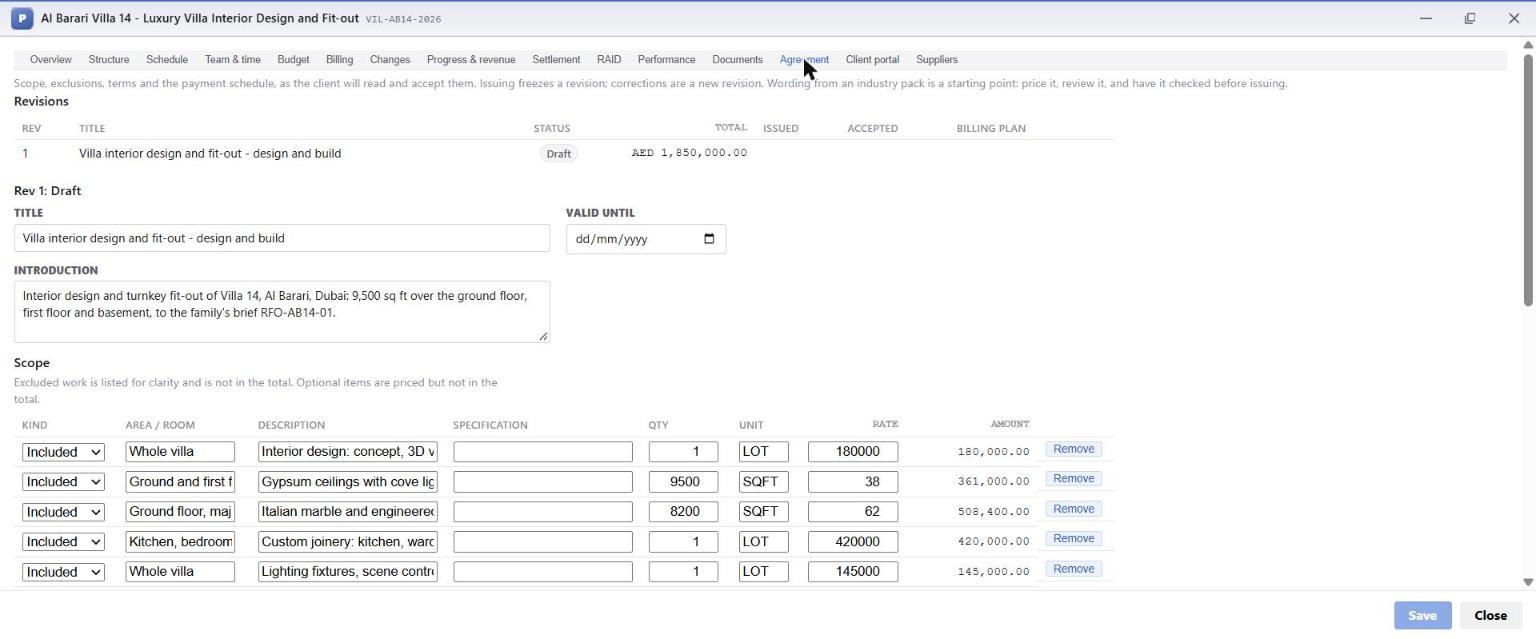
The scope
Each scope line has a kind, an area or room, a description, an optional specification, a quantity, a unit and a rate. The amount is calculated.
| Kind | Area | Description | Qty | Unit | Rate | Amount |
|---|---|---|---|---|---|---|
| Included | Whole villa | Interior design: concept, 3D visuals, detailed drawings and specifications | 1 | LOT | 180,000 | 180,000 |
| Included | Ground and first floor | Gypsum ceilings with cove lighting, and partitions | 9,500 | SQFT | 38 | 361,000 |
| Included | Ground floor, majlis, bedrooms | Italian marble and engineered oak flooring | 8,200 | SQFT | 62 | 508,400 |
| Included | Kitchen, bedrooms, majlis | Custom joinery: kitchen, wardrobes and walnut wall panelling | 1 | LOT | 420,000 | 420,000 |
| Included | Whole villa | Lighting fixtures, scene controls and electrical changes | 1 | LOT | 145,000 | 145,000 |
| Included | Whole villa | Painting, lacquer and Venetian plaster finishes | 1 | LOT | 95,600 | 95,600 |
| Included | Site | Site protection, project management and final clean | 1 | LOT | 140,000 | 140,000 |
| Excluded | Outdoor | Pool, landscaping and outdoor kitchen | - | |||
| Excluded | Kitchen | Supply of kitchen appliances (by the family) | - | |||
| Optional | Basement | Home cinema room fit-out | 1 | LOT | 125,000 | (not in total) |
| Total | 1,850,000 |
The four kinds:
- Included - in the price.
- Excluded - listed so that nobody can later say it was assumed. Not in the total.
- Allowance - a sum for something the client will choose later (for example loose furniture). In the total.
- Optional - priced but not in the total. The client can take it up later as a variation. The home cinema was listed here, and chapter 7 shows the family asking for it.
The payment schedule
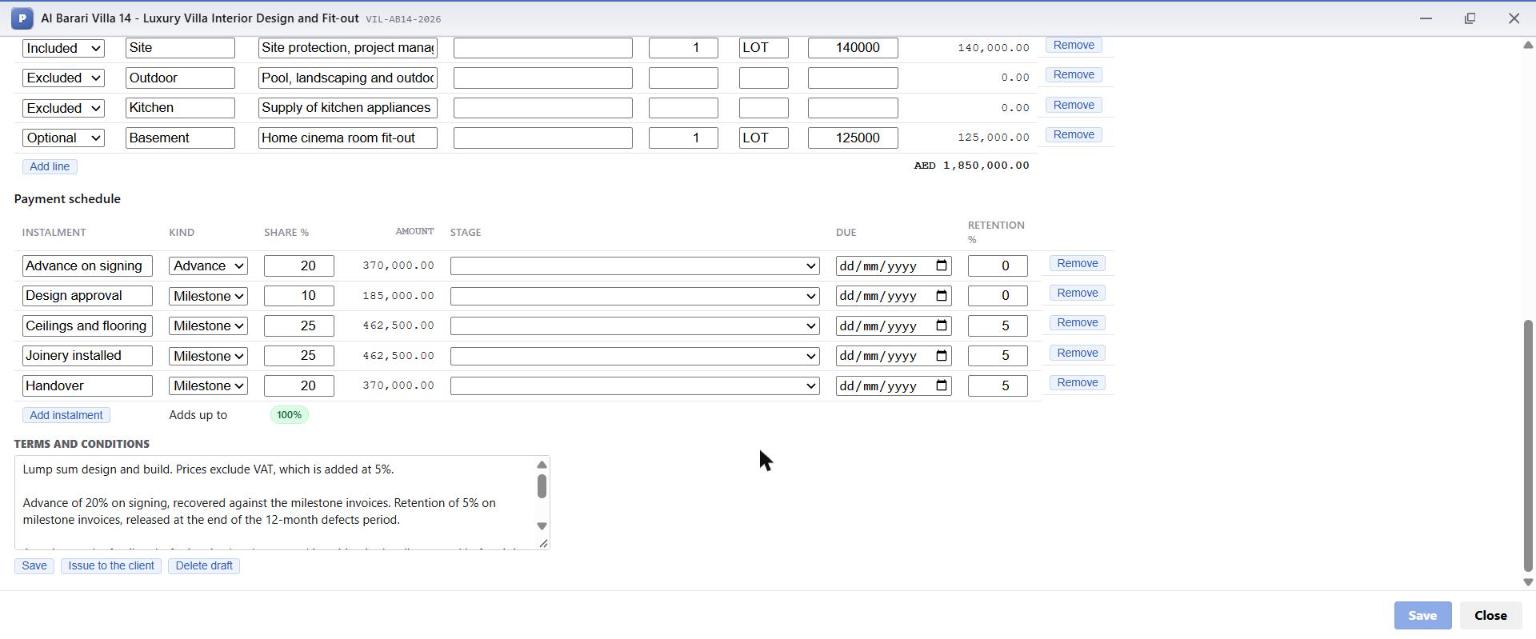
| Instalment | Kind | Share | Amount | Retention |
|---|---|---|---|---|
| Advance on signing | Advance | 20% | 370,000 | - |
| Design approval | Milestone | 10% | 185,000 | - |
| Ceilings and flooring complete | Milestone | 25% | 462,500 | 5% |
| Joinery installed | Milestone | 25% | 462,500 | 5% |
| Handover | Milestone | 20% | 370,000 | 5% |
Adds up to turns green at 100%. OSERP will not issue a schedule that does not add up. The Stage and Due columns can tie an instalment to a project stage or a date. Retention % is the share the client may hold back from that instalment until the defects period ends.
Under it, Terms and conditions are free text: the lump-sum basis, VAT, how the advance is recovered, retention, and the clause that mattered most later: any change the family asks for is priced and approved in writing in the client portal before it is carried out.
3.2 Issue it
Issue to the client freezes this revision. From then on it cannot be edited; a correction would be a new revision, and the client always sees which revision they are accepting.
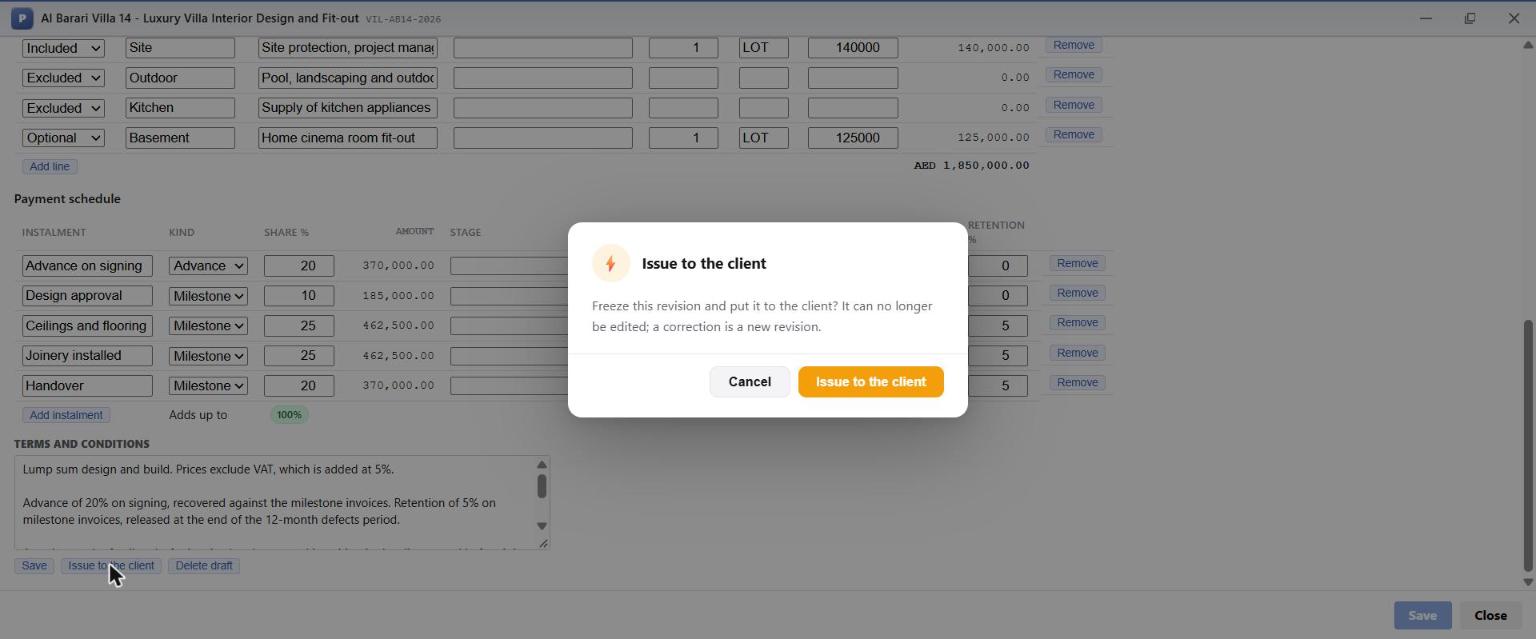
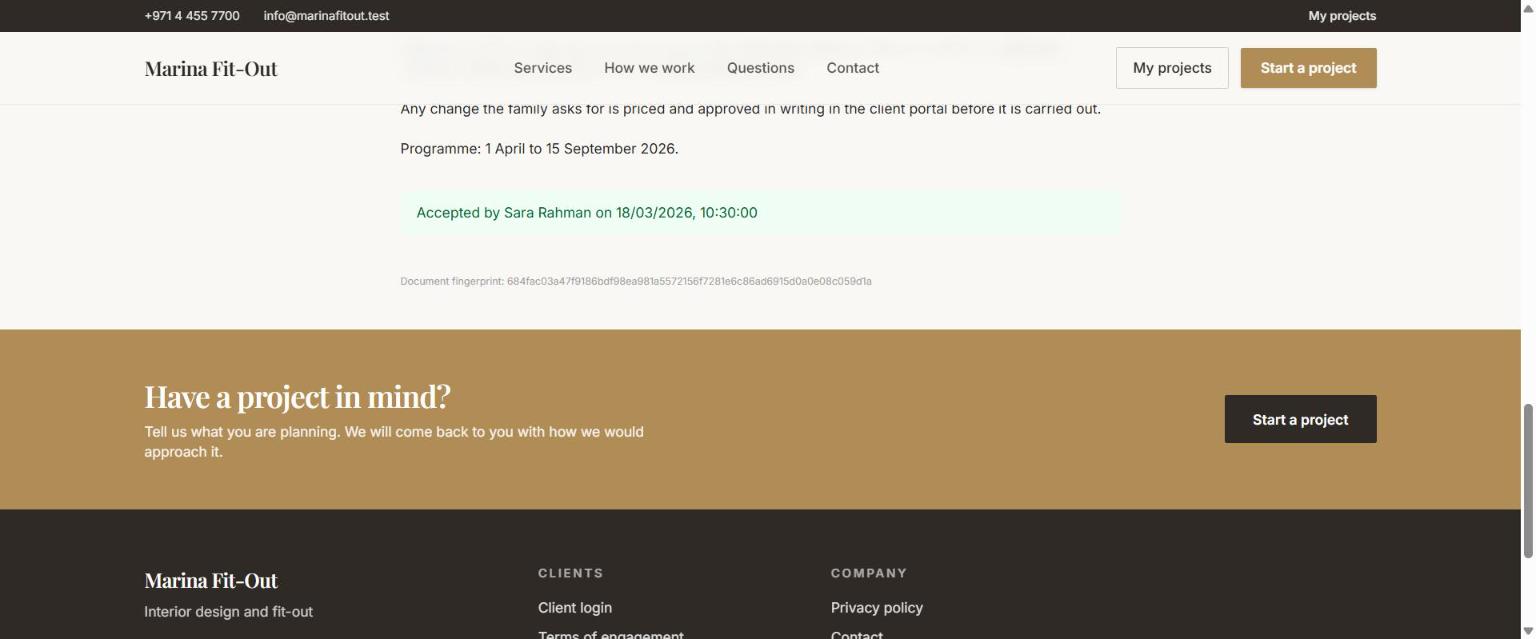
When it is issued, OSERP takes a fingerprint of the exact content (a SHA-256 hash). The fingerprint is shown to the client, recorded with their acceptance, and checked when they accept. If anything had changed in between, the acceptance is refused. Nobody can accept one version and later be shown another.
3.3 Invite the client to the portal (Client portal tab)
On the Client portal tab, under Invite someone, Priya entered Sara Rahman's name, email and mobile, and chose what she may do:
- See progress - always on.
- Open documents - download the documents marked Client sees.
- Accept and approve - accept agreements, approve drawings, milestones and variations.
- Pay invoices online - pay through the company's payment gateway, where one is set up.
Access ends can limit how long the invitation lasts (for example for a consultant).
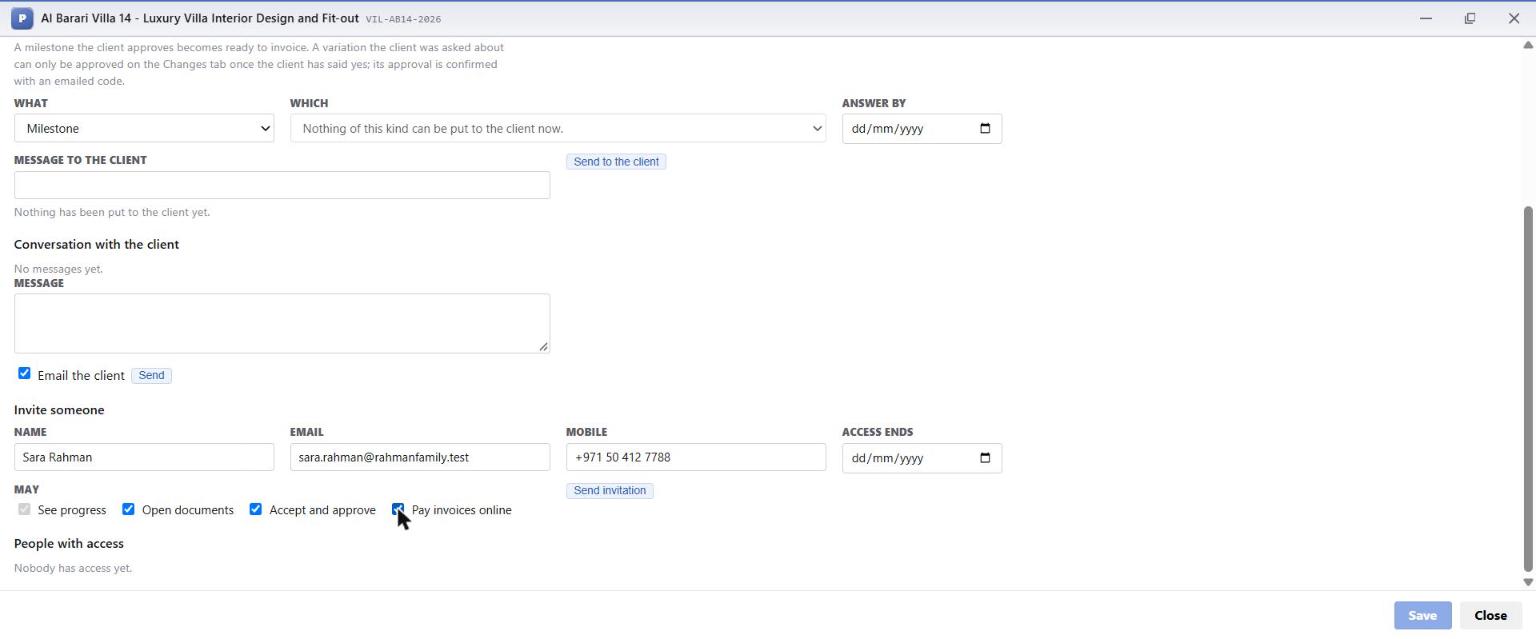
Send invitation emails Sara a one-time link from the company's own address. The link works once, for seven days. A second family member, or the family's own architect, can be invited the same way, each with their own login and their own rights.
What the client never sees
Cost, budget, margin, the estimate at completion, subcontractor orders and internal documents are never shown on the portal. The client sees the project's name, status, dates, project manager, stages, the documents ticked for them, their agreement, their invoices, the updates you publish and the conversation.
3.4 The client accepts the invitation
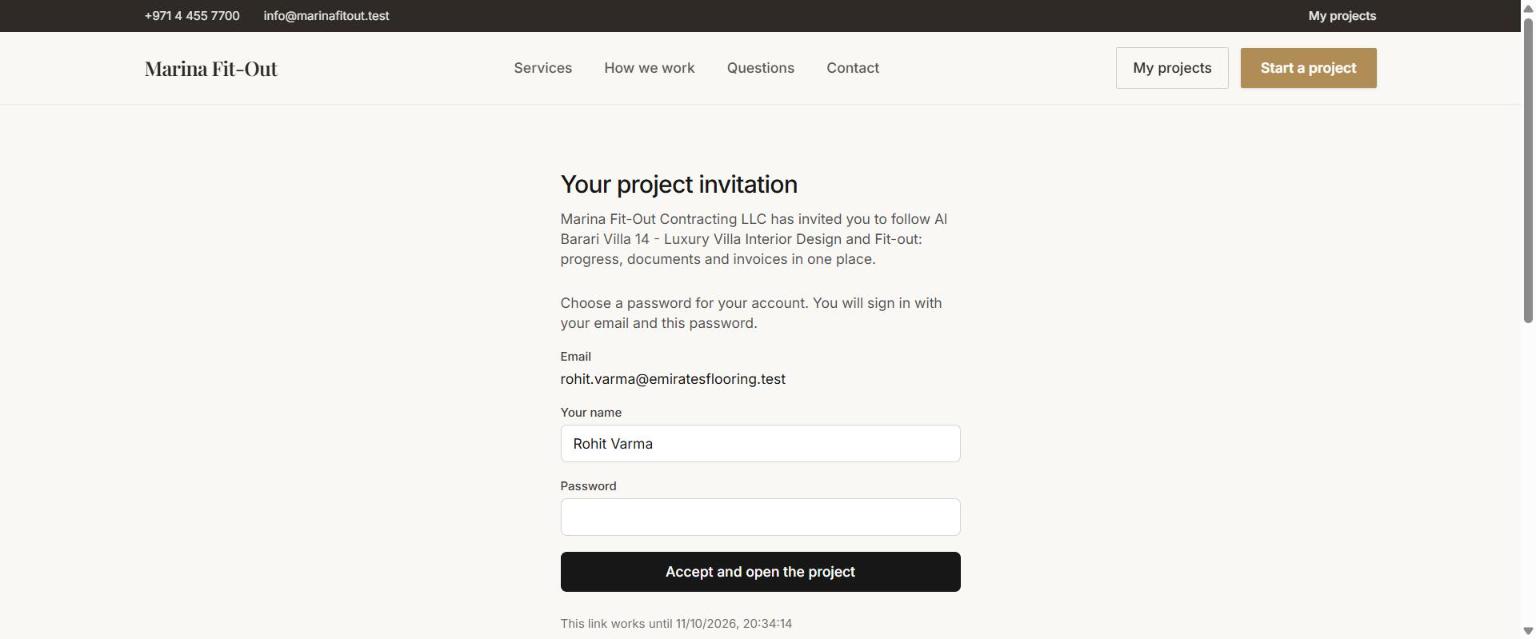
Sara opened the link, chose a password and was taken straight to her project. The invitation page looks like this (shown here for a subcontractor's invitation; the client's is identical):
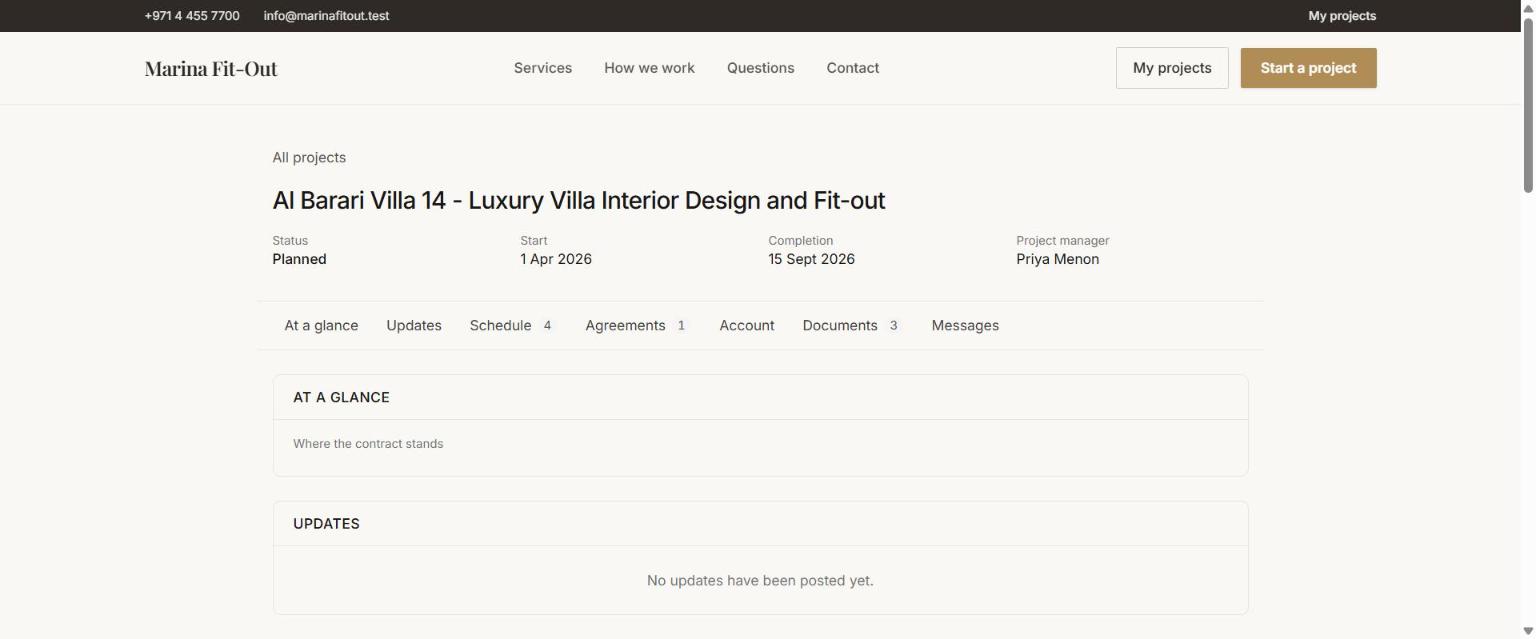
Her project page, on the company's website, while the project was still being planned:
3.5 The client reads and accepts the agreement
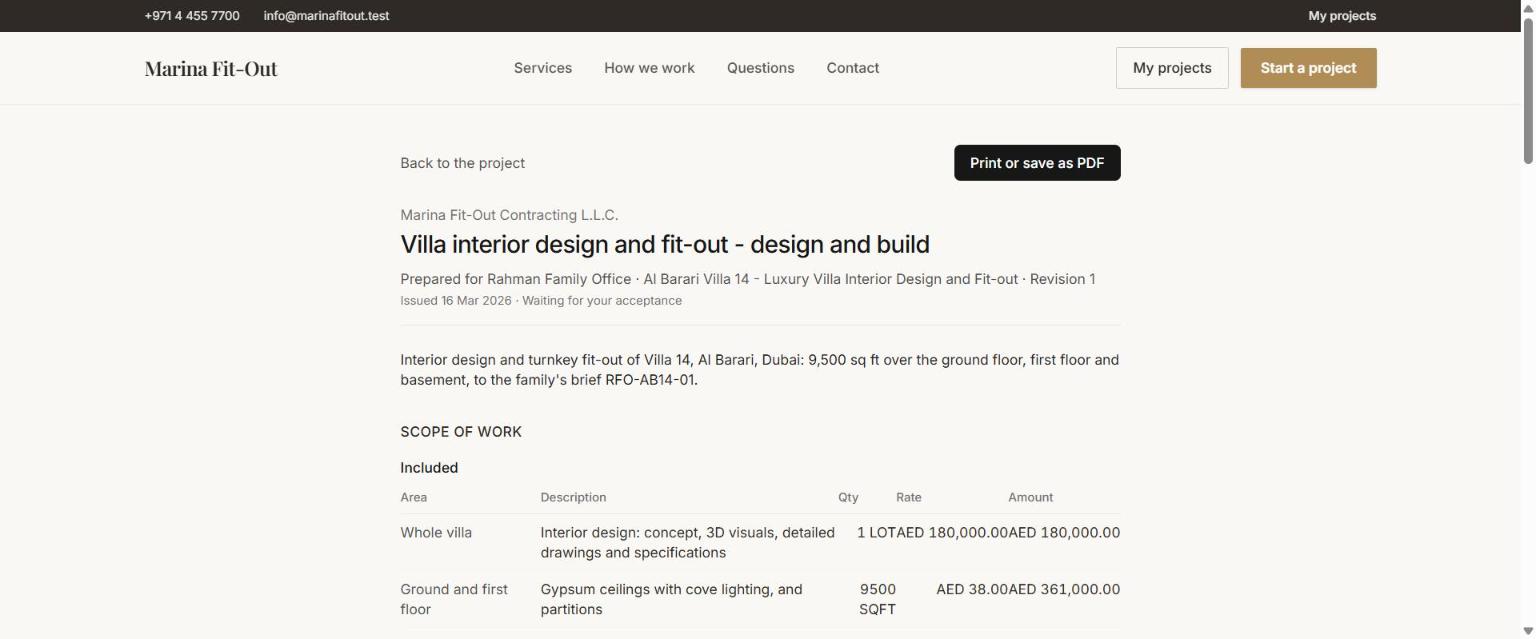
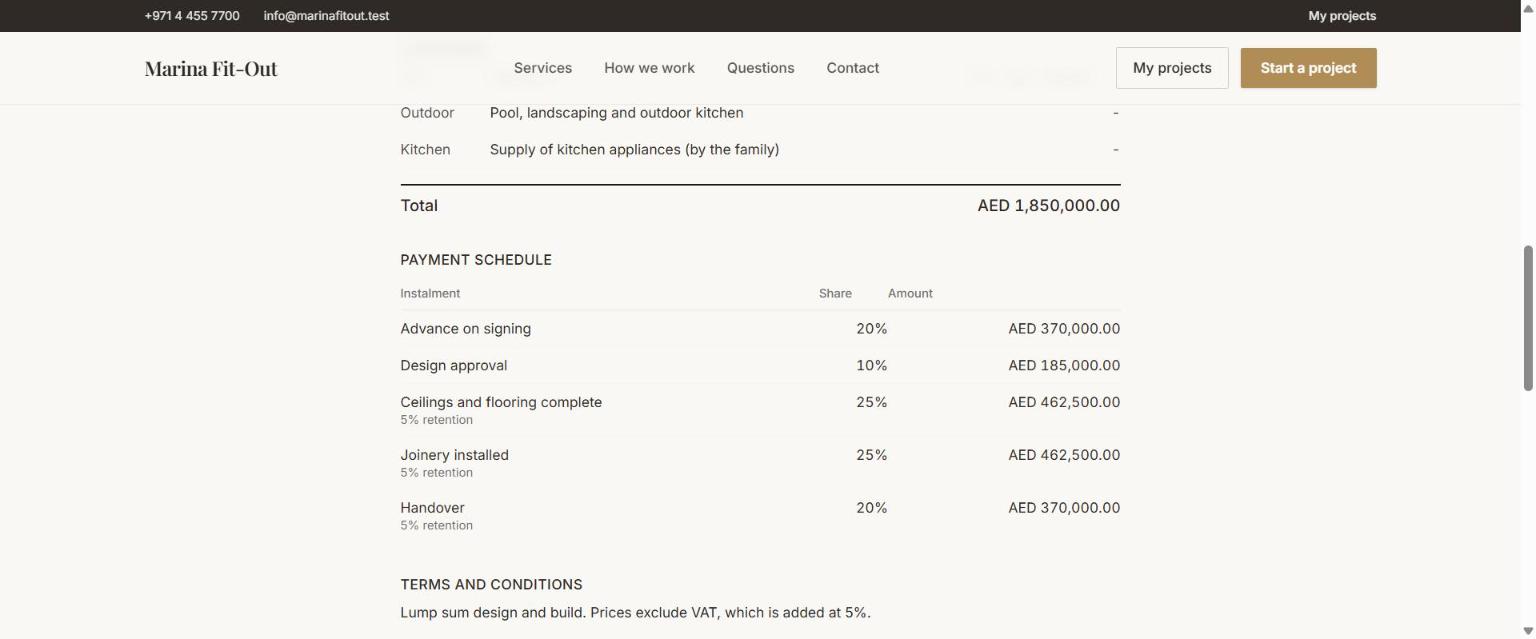
Under Agreements Sara opened the agreement: who prepared it and for whom, the revision, when it was issued, the full scope with included and excluded work, the payment schedule with retention, and the terms. Print or save as PDF gives her a copy.
At the bottom is Accept this agreement. Accepting is a two-step, deliberate act:
Email me a code sends a six-digit code to the email address on her account. It works once, for ten minutes.
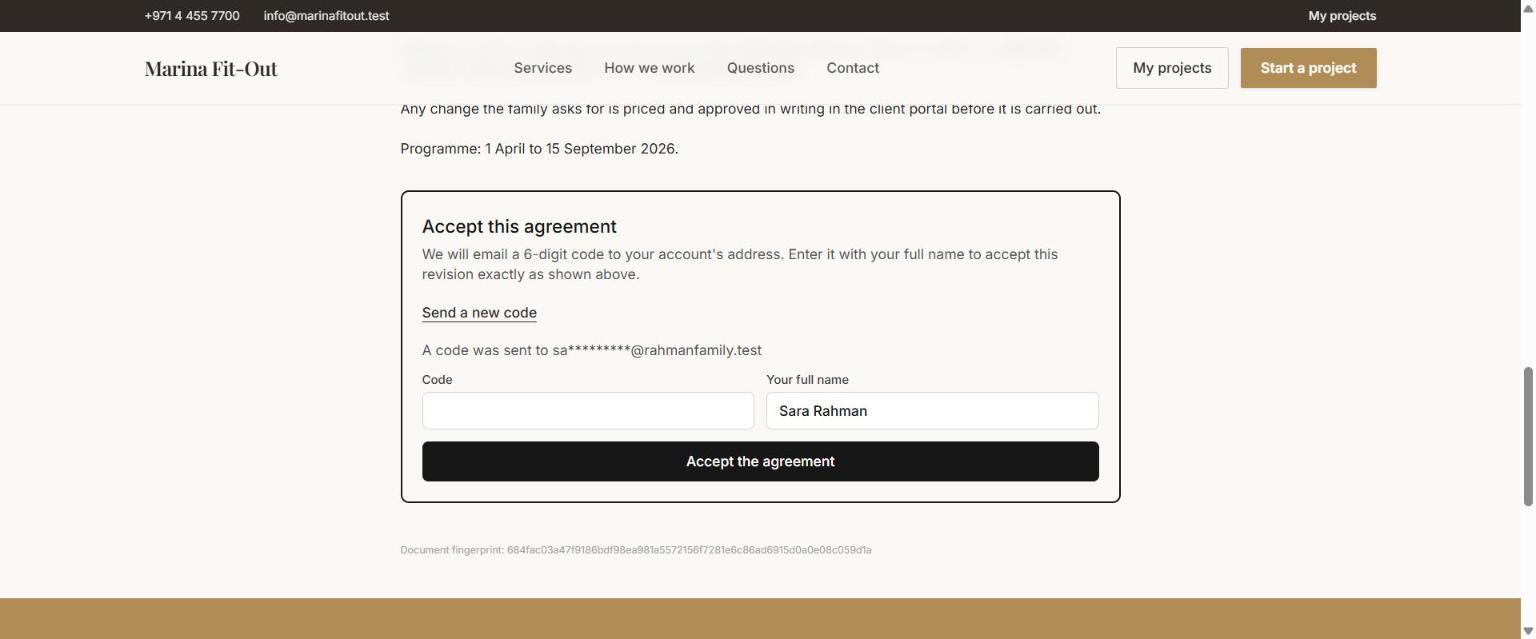
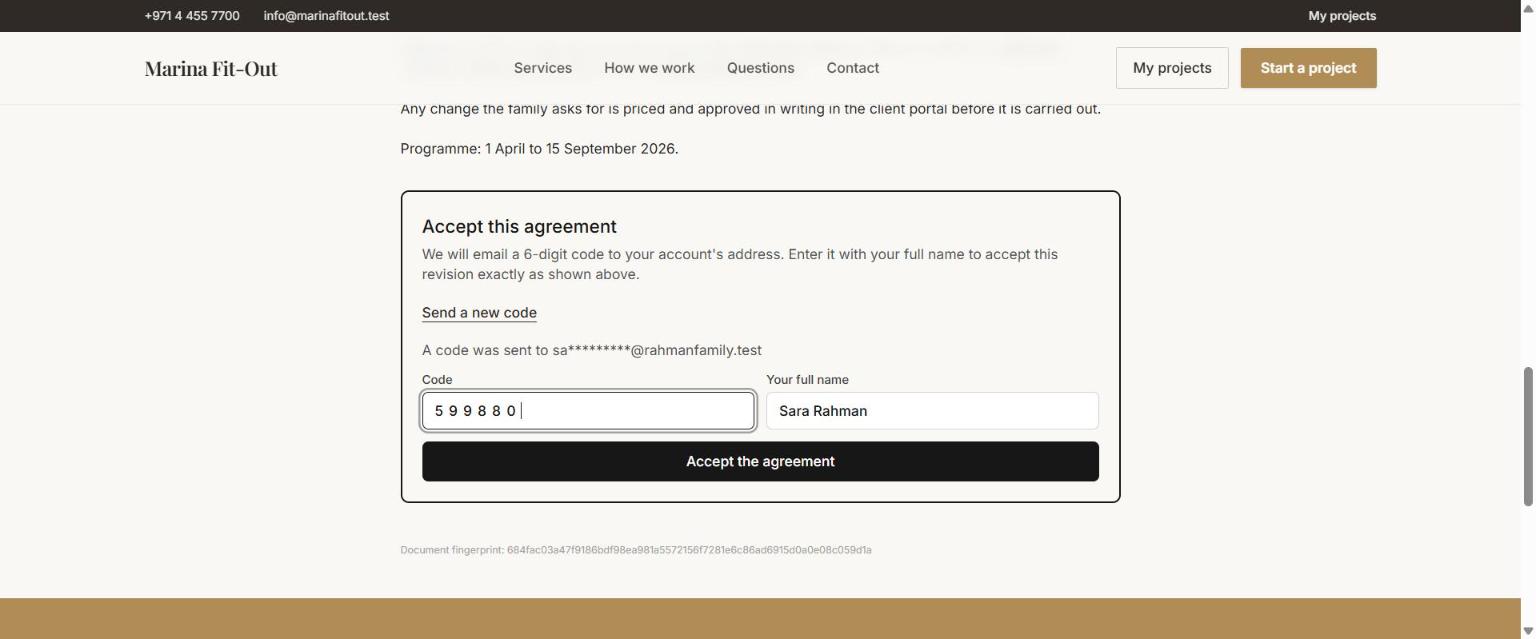
She types the code and her full name, and chooses Accept the agreement.
The page then shows who accepted and when, with the document fingerprint underneath:
Why a code, and not a tick box
A tick box only proves that somebody clicked. The emailed code proves the acceptance came from the person who controls the client's email, at that moment, for that exact content. OSERP records the method, the address the code went to, the time, and the fingerprint as evidence on the agreement. It is the record you need if a scope dispute ever arises.
3.6 Apply the agreement to the billing plan
Back in OSERP, the Agreement tab now shows the revision as Accepted by Sara Rahman on 18 March, and below the terms the Evidence: Accepted in the portal with an emailed code (sara.rahman@...) - Sara Rahman 3/18/2026 - Content fingerprint 684fac03a47f.
Apply to the billing plan turns the payment schedule into billing lines, and sets the project's contract value from the agreement.
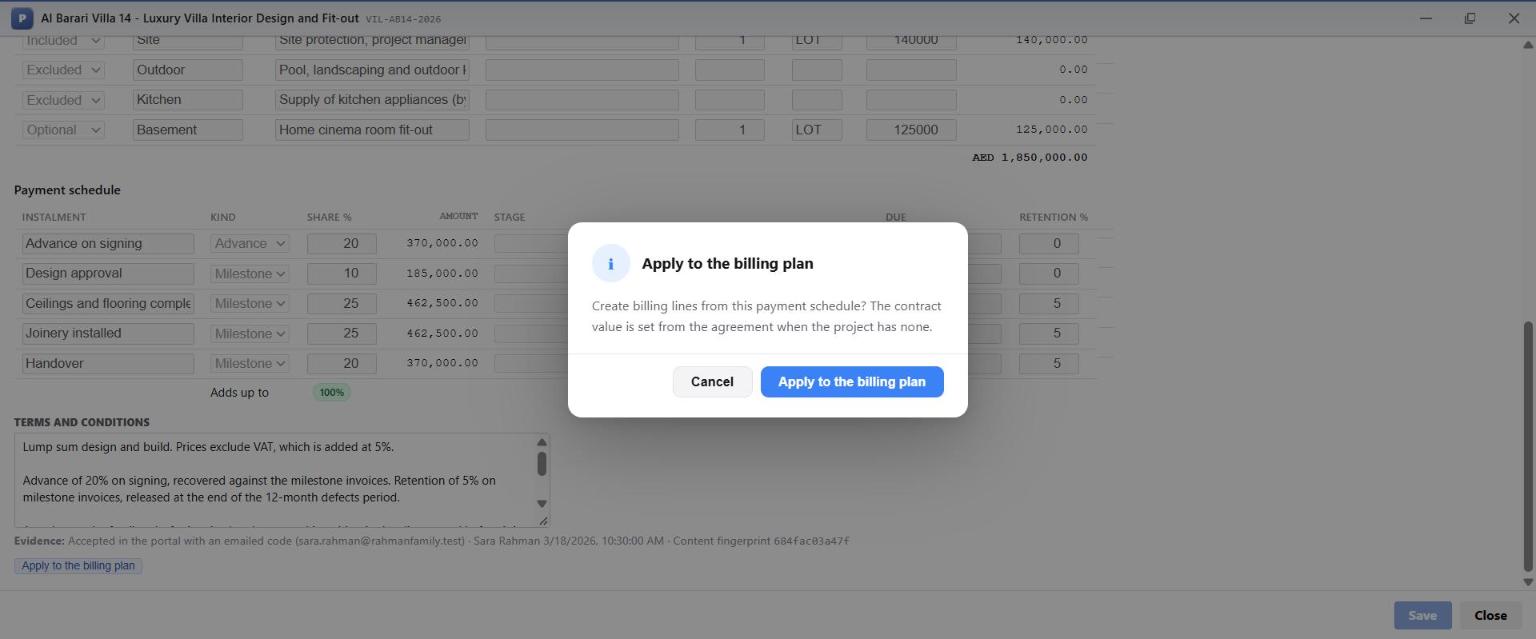
The Billing tab now holds the five instalments, each ready to be invoiced when it falls due:
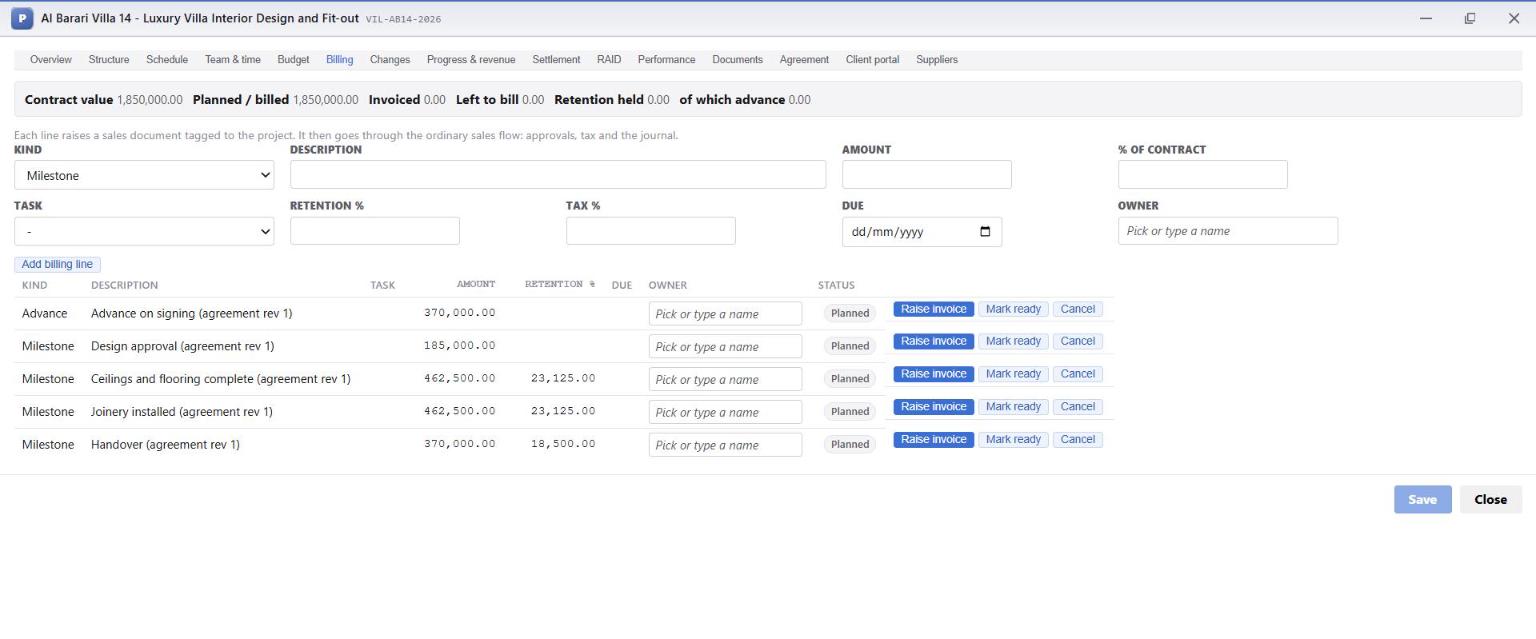
| Column | Meaning |
|---|---|
| Kind | Advance or milestone (or progress, for measured work) |
| Amount | The instalment's value before VAT |
| Retention % | Held back by the client on this instalment |
| Status | Planned, Ready, Invoiced |
| Raise invoice | Creates the client invoice through the normal sales flow: approvals, VAT and the journal |
| Mark ready | Flags the instalment as due, for example when its milestone is reached |
The summary line along the top keeps four figures in view: Contract value, Invoiced, Left to bill and Retention held.
What this chapter means for the business
- No scope dispute can be won by memory. The client accepted a frozen, fingerprinted revision with an emailed code, and the evidence sits on the agreement.
- Exclusions and optional items are written down, so a request outside the scope is clearly a change, and chapter 7 shows that change being paid for.
- The 20% advance was invoiced on 20 March and paid on 30 March, before a single subcontractor had billed. The project was funded by the client from day one.
- Nobody retyped the schedule. The instalments the client accepted are exactly the instalments that get invoiced.