
Appearance
1. The company, its website and its people
Before the first project, Marina Fit-Out set OSERP up once. This chapter shows what that took. It is a one-time job of under an hour, and every later project uses it.
1.1 Apply the industry pack
An industry pack adds what a trade needs: project types with their own wording, suggested work plans, an agreement to start from, and a matching website template. Marina Fit-Out applied Interior design and fit-out.
- Open Projects.
- Choose Industry packs at the top right.
- Choose Apply on Interior design and fit-out.
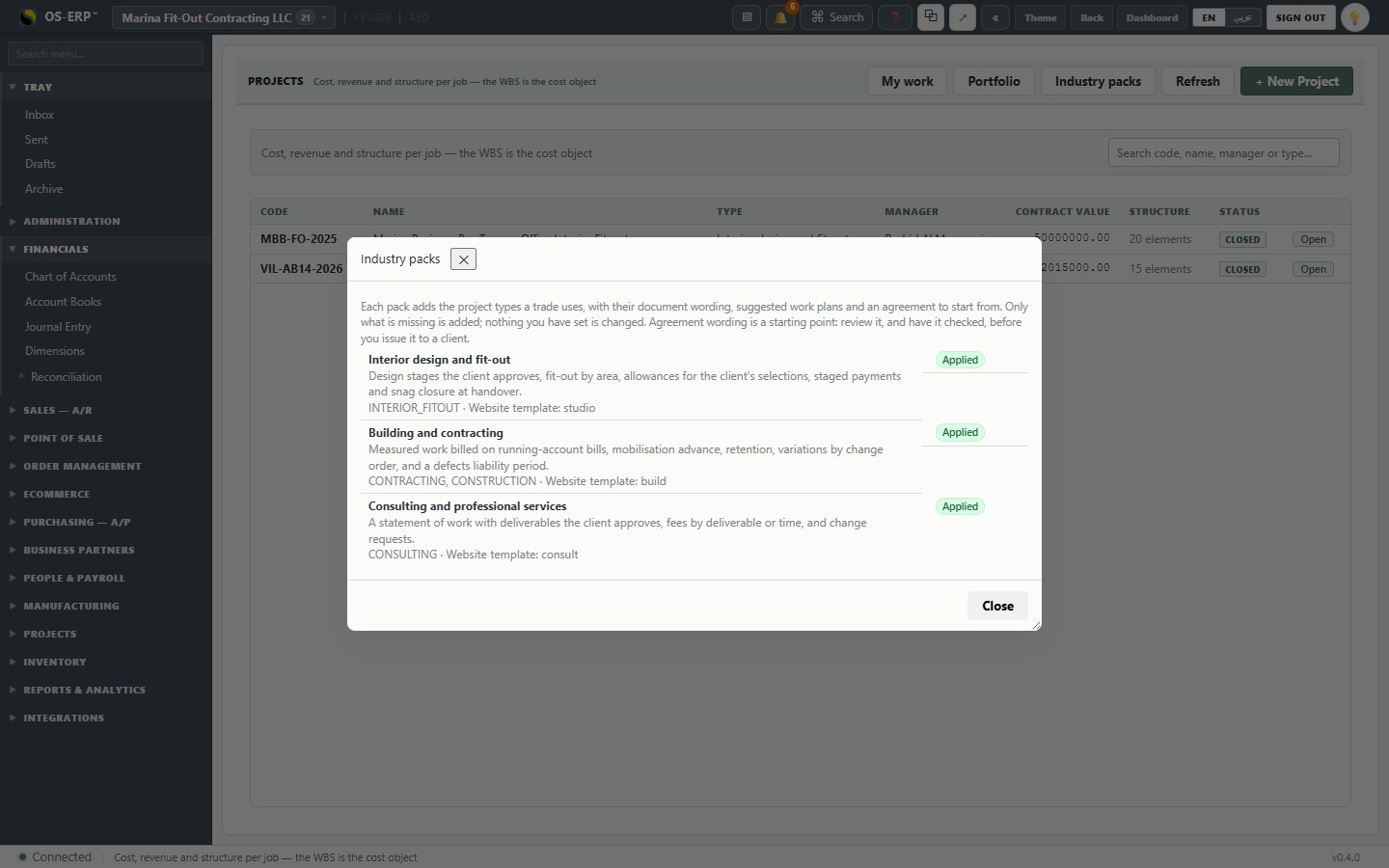
What the interior pack added:
- The project type Interior design and fit-out (
INTERIOR_FITOUT), with stages a client approves, fit-out by area, allowances for the client's selections, staged payments, and snag closure at handover. - Document kinds named the way the trade names them: drawings, material and finish selections, snag lists, handover packs.
- An agreement template to start each client agreement from.
- The Studio website template, which switches the client portal on.
Applying a pack never overwrites anything
Only what is missing is added. If you have already set up your own project types or wording, they stay as they are. You can apply more than one pack; the company above also applied the building and consulting packs, because it takes on small contracting and design-only work too.
1.2 The company's website, with the client portal
Clients and subcontractors never log in to OSERP itself. They use the company's own website, under the company's own name. The website is an OSERP store in Site mode (a business website with no shop), with the Client portal switched on.
- Open Ecommerce > Stores & Domains.
- Create the store (or choose Edit on an existing one) and give it the company's web address.
- Tick Client portal and save.
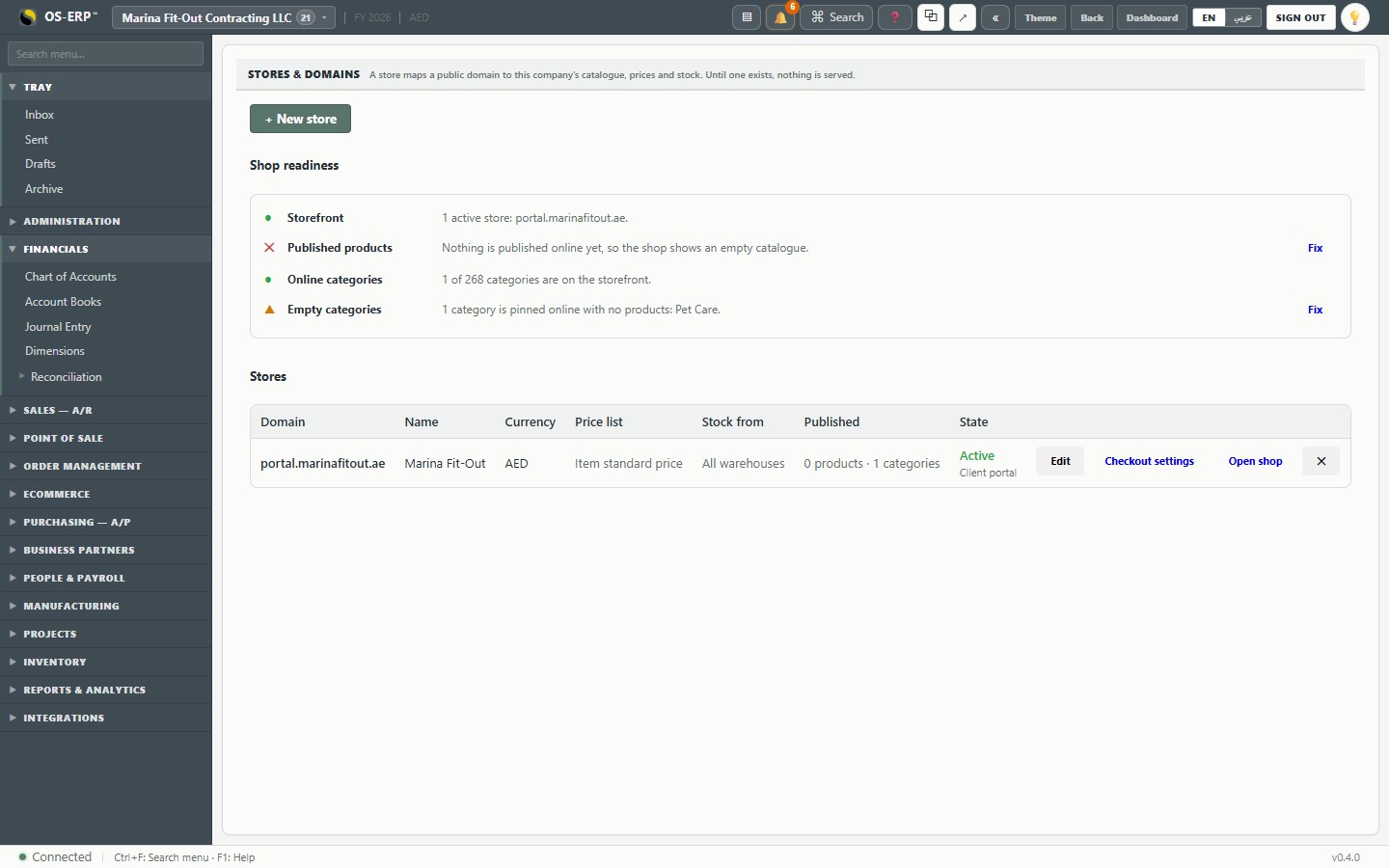
The store row shows Client portal under its state. This is the website the Rahman family and the subcontractors used throughout the project.
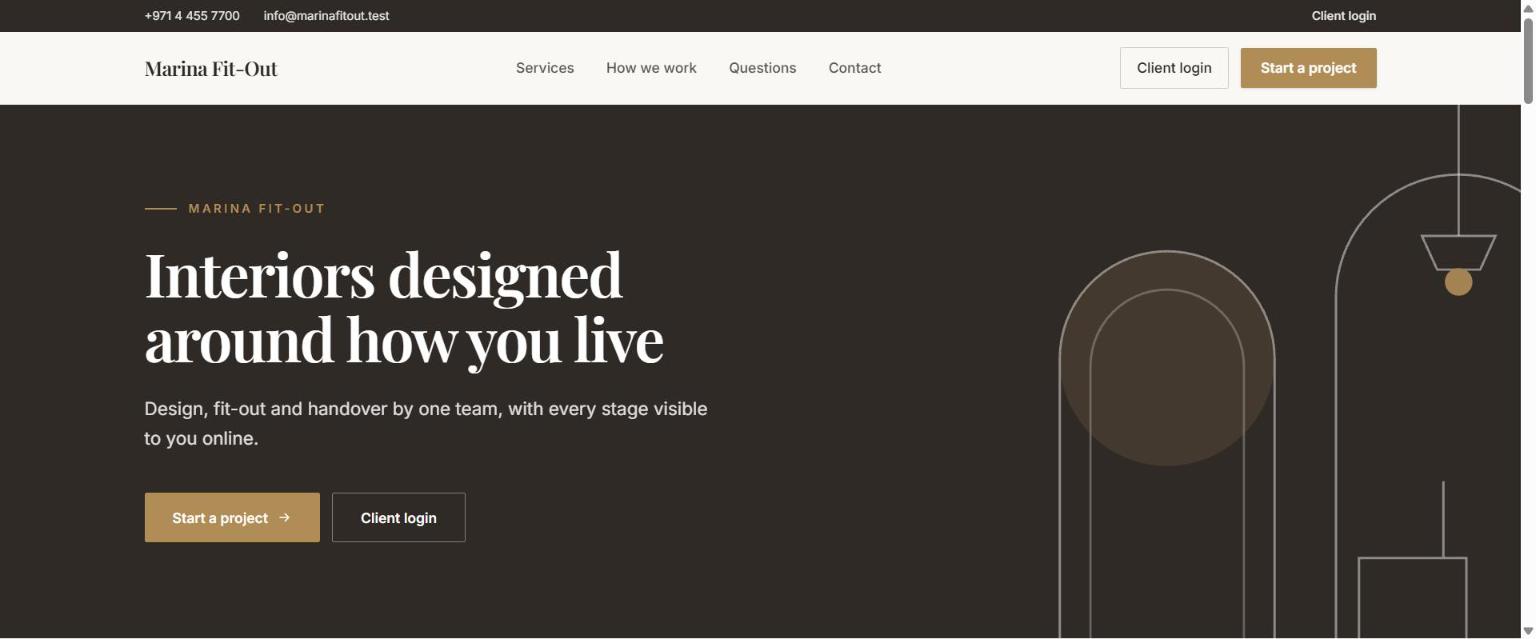
This is what the family saw when they visited it: the company's own home page, with Client login at the top.
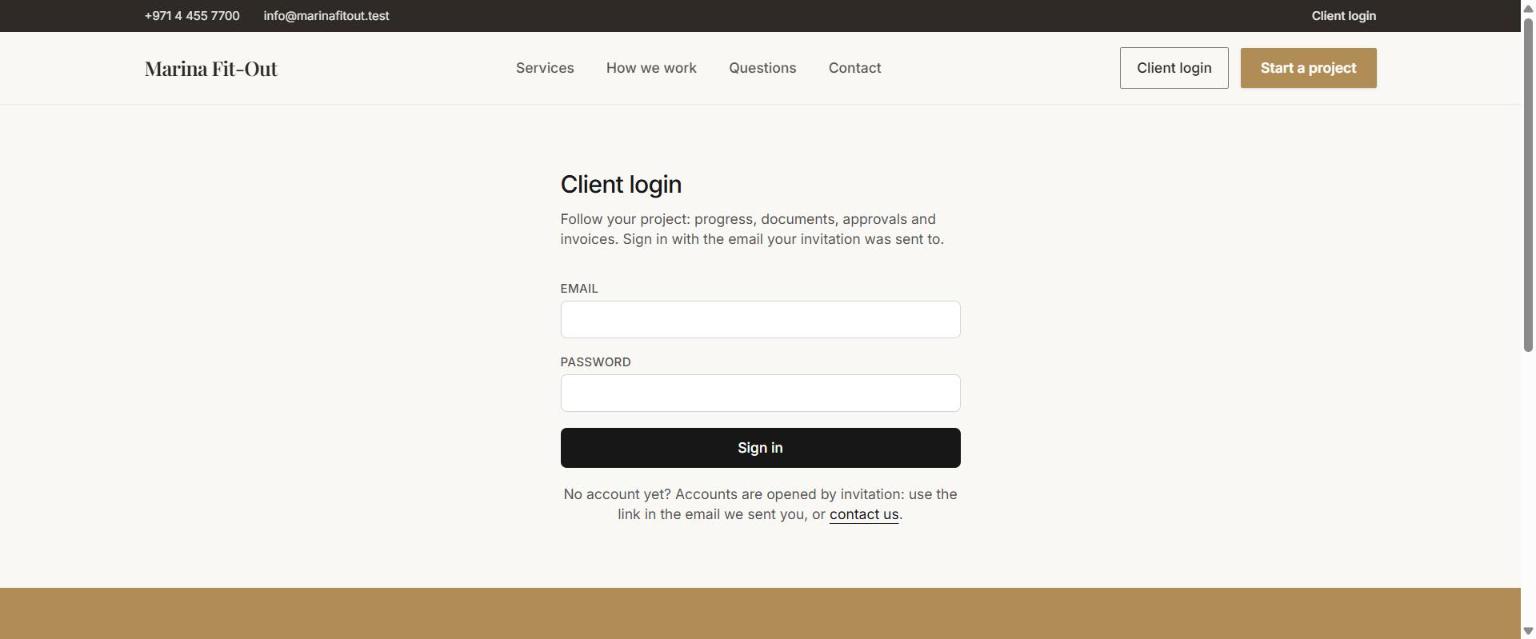
And the login page their invitation led them to:
1.3 Email
OSERP sends invitations, acceptance codes and notices through the company's own email account. Marina Fit-Out set this up under Integrations > Notifications > Email with its mail server, so every message to the family came from the company's own address.
Without email
OSERP still works without an email gateway: when you invite someone, it shows you the invitation link so you can send it yourself, for example on WhatsApp. Acceptance codes, however, are only ever sent by email, so a client accepting an agreement or a variation online needs email to be set up.
1.4 The team
| Person | Role on this project | What they do in OSERP |
|---|---|---|
| Priya Menon | Project manager | Runs the project window: plan, budget, orders, certification, client portal, billing |
| Elena Kowalski | Lead interior designer | Design documents, the client's selections |
| Omar Haddad | Site supervisor | Measurements on site, which become certified quantities |
| Bilal Qureshi | Quantity surveyor | Budget, subcontract orders, valuations |
| Yousef Nasser | Document controller | Drawings and revisions |
Each person who signs in to OSERP has a user with a role under Administration > Users. Priya's role gives her the Projects permissions, including the client portal and budgets. Team members who only appear on the project's team list (for time and cost rates) do not need a login.
1.5 The client and the subcontractors
Everyone the company deals with is a business partner:
- Rahman Family Office - customer (the client).
- Al Noor Gypsum & Ceilings LLC, Emirates Flooring Contracting LLC, Gulf Joinery Industries LLC, Bright Line Electromechanical LLC, Colourcraft Painting Services LLC - vendors (subcontractors).
- Studio Linea Design Consultants and SiteServe Logistics LLC - vendors (consultant and site services).
A partner can be both a customer and a vendor; the role decides where it can be used. Partners are kept once for the whole company and reused on every project, together with their compliance papers (trade licence, insurance), which you will see in chapter 4.
1.6 The project list
With the setup done, the Projects screen lists every job: code, name, type, project manager, contract value, how many work elements it has, and its status.
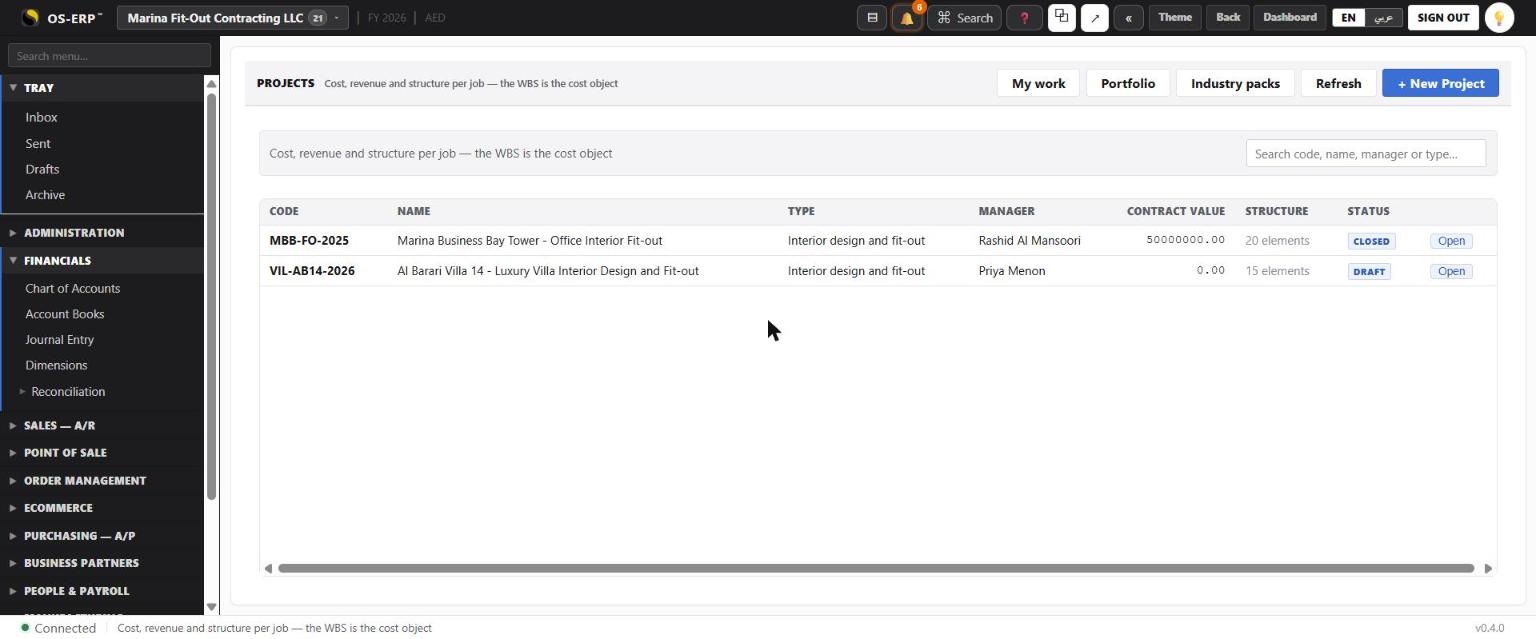
The list shows the company's previous large job (an office tower fit-out, closed) and the new villa project in Draft, which is where this case study begins.
What this chapter means for the business
- One website for clients and subcontractors, under the company's name. Clients do not install anything or learn a new system.
- The trade's own language from the first day, without a consultant configuring project types.
- Partners and their papers are kept once. The next project starts with suppliers already known and checked.